GatorEvals myUFL Enterprise Reporting
GatorEvals and Historical GatorRater Enterprise Reporting Data
The University of Florida Enterprise Reporting system provides faculty with a way to view their historical GatorEvals and GatorRater data in a downloadable Excel format. Faculty can view their results by Term and Class Number. The departmental and college means are calculated using only either undergraduate or graduate courses, depending on the level of the course being evaluated.
If you have any questions as to the accuracy or completeness of the data, send an email to GatorEvals-Support@ufl.edu.
Please use the following navigation path to login to view your GatorEvals and GatorRater data:
- GatorEvals Data opens in a new tab
- GatorEvals Browse Individual Evaluation Data opens in a new tab
- GatorRater Historic Data opens in a new tab
- GatorRater Historic Browse Individual Evaluation Data opens in a new tab
or by following the guided steps below to access myUFL Enterprise Reporting via https://reporting.it.ufl.edu/ opens in a new tab
- Click the hamburger window at the top left
- On the Team Content window, click Student Information
- Click Faculty Evaluations
- Click GatorEvals - Faculty View
- Choose a Term(s) and click Next, select Class Number(s) and click Finish
- Download
Follow the screenshots below
Step 1: Click the hamburger window at the top left

Step 2: On the Team Content window, click Student Information

Step 3: Select "Faculty Evaluations"

Step 4: Select "GatorEvals by Faculty View" - this will allow you to download your tables in Excel. You can also select, "GatorEvals Browse Individual Evaluations - Faculty View" to view each response by class number.

Step 5: Choose the Term(s) and select Next, then select the Class Number(s) and click Finish


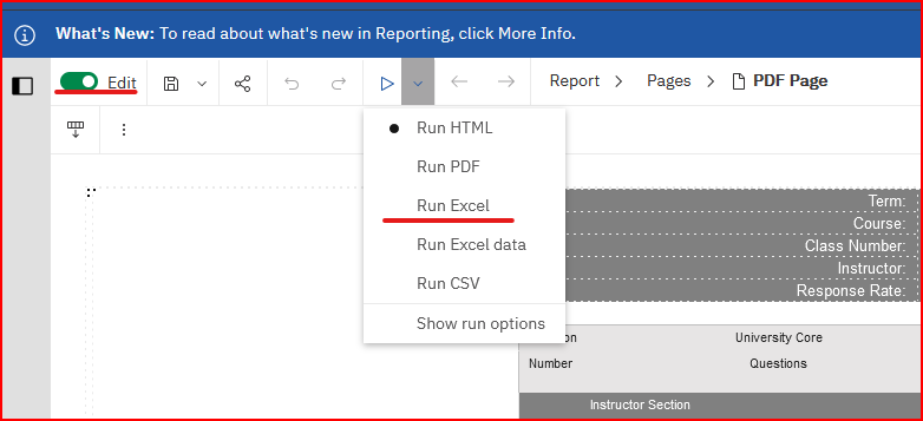
Step 6: If you would like to download your data for a Class Number report, you will need to toggle the "Edit" switch on the left hand side of the menu to the right. You can then select the dropdown next to what looks like the Play button. Select "Run Excel". Enterprise Reporting will then bring you back to the selecting a Term and Class Number. You can select one Class Number, but you may also select multiple Terms and Class Numbers. This will then result in one Excel file with multiple sheets of those Class Number reports.